> For the complete documentation index, see [llms.txt](https://docs.spike.sh/llms.txt). Markdown versions of documentation pages are available by appending `.md` to page URLs; this page is available as [Markdown](https://docs.spike.sh/live-call-routing/introduction-to-live-call-routing.md).
# Introduction to Live Call Routing
Live Call Routing gives your team a dedicated phone number that routes incoming calls straight to the on-call engineer.
## Live Call Routing
Live Call Routing gives your team a dedicated phone number that routes incoming calls to the on-call engineer. It captures human-reported incidents: a security vendor flagging a breach, or a payment partner reporting a failure. The caller connects directly to whoever is on-call.
{% hint style="success" %}
Live Call Routing is available on **all paid plans**.
{% endhint %}
### How Live Call Routing works
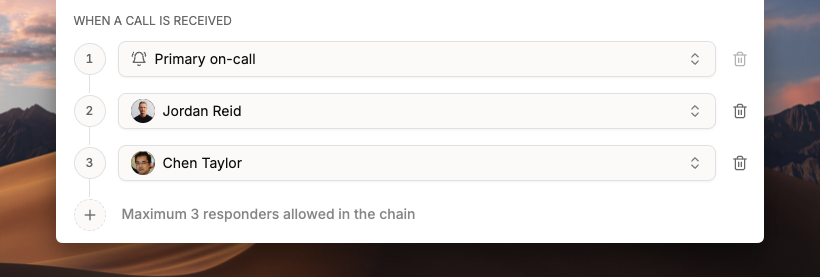
Incoming calls route through on-call and fallback responders.
Spike uses your on-call schedules to determine who receives calls.
* An incoming call first rings the configured on-call responder.
* If there is no answer, it rings fallback responder 1.
* If still unanswered, it rings fallback responder 2.
* If no one answers, Spike plays your configured **No Answer** message and takes a message from the caller.
{% hint style="info" %}
Voicemail pickup counts as an answered call. Spike will not route to a fallback responder in this case.
{% endhint %}
Every call is recorded and logged. A detailed alert is sent to your configured Slack or Microsoft Teams channels.
### How to set up Live Call Routing
Visit [Live Call Routing](https://app.spike.sh/call-routing) on the dashboard to get started.
Live Call Routing works with any phone number from Twilio or Plivo. Use an existing number you already own, or purchase a new one directly from Twilio or Plivo.
Your number stays completely private. Spike does not require API keys or direct access to your account.
{% hint style="info" %}
To get a number directly from Spike, email .
{% endhint %}
{% content-ref url="/pages/Y8aE8oXq5bgLbGl5vIHU" %}
[Configuring with Twilio](/live-call-routing/lcr-with-twilio.md)
{% endcontent-ref %}
{% content-ref url="/pages/md1UtAnk4WBgwdeOfWrD" %}
[Configuring with Plivo](/live-call-routing/lcr-with-plivo.md)
{% endcontent-ref %}
{% stepper %}
{% step %}
#### Add your phone number
Enter your phone number in full international format, including the `+` symbol. Give it a clear name (e.g., *Engineering Hotline*) for easy identification.
{% hint style="info" %}
Find your number in Twilio under **Console → Develop → Phone numbers → Active numbers**, or in Plivo under **Numbers → Active**.
{% endhint %}
{% endstep %}
{% step %}
#### Configure who receives the calls
Select an on-call schedule or a specific responder. Optionally add up to two fallback responders.
{% endstep %}
{% step %}
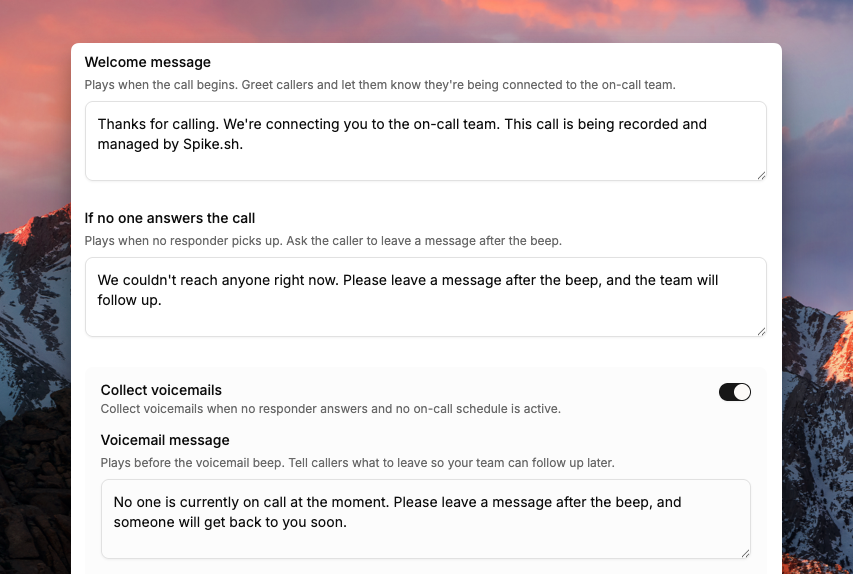
#### Customize your messages
Set up three audio messages:
* **Welcome message**: played when someone calls.
* **No one on-call message**: played if no one is currently on call.
* **No answer message**: played if all responders fail to answer.
{% endstep %}
{% step %}
#### Connect your Twilio or Plivo account
Spike provides a webhook URL. Paste it into your Twilio or Plivo console as per their instructions.
{% endstep %}
{% step %}
#### Go live
Your phone number is now ready to start routing calls.
{% endstep %}
{% endstepper %}
### Call recording setup
When call recording is enabled, Spike retrieves recordings directly from your Twilio or Plivo account. To play recordings inside Spike, disable **HTTP Basic Authentication for media access** in your provider's settings.
{% tabs %}
{% tab title="Twilio" %}
In your Twilio Console, go to **Develop → Voice → Settings → General**. Under **HTTP Basic Authentication for media access**, select **Disable**.
{% endtab %}
{% tab title="Plivo" %}
In your Plivo Console, go to **Voice → Settings → Other Settings**. Under **HTTP Basic Authentication for media access**, select **Disable**.
{% endtab %}
{% endtabs %}
### Customize messages
Configure the three audio messages for your phone line.
Spike plays audio messages at key points during a call. Configure three types:
#### Welcome message
Played as soon as the call begins. Use it to greet callers and let them know they're being connected to the on-call team.
*Example: "Hi, thanks for calling the Engineering Hotline. Please hold while we connect you to the on-call engineer."*
#### No one answered message
Played when no one answers after trying the primary and fallback responders. Ask the caller to leave a voicemail after the beep.
*Example: "Sorry, no one is available to take your call right now. Please leave a message and we'll get back to you as soon as possible."*
#### No one on-call message
Played when there is no on-call responder at the moment.
*Example: "Our on-call team is currently offline. Please leave a message with your name and number, and we'll return your call as soon as we're back on shift."*
### Call logs and recordings
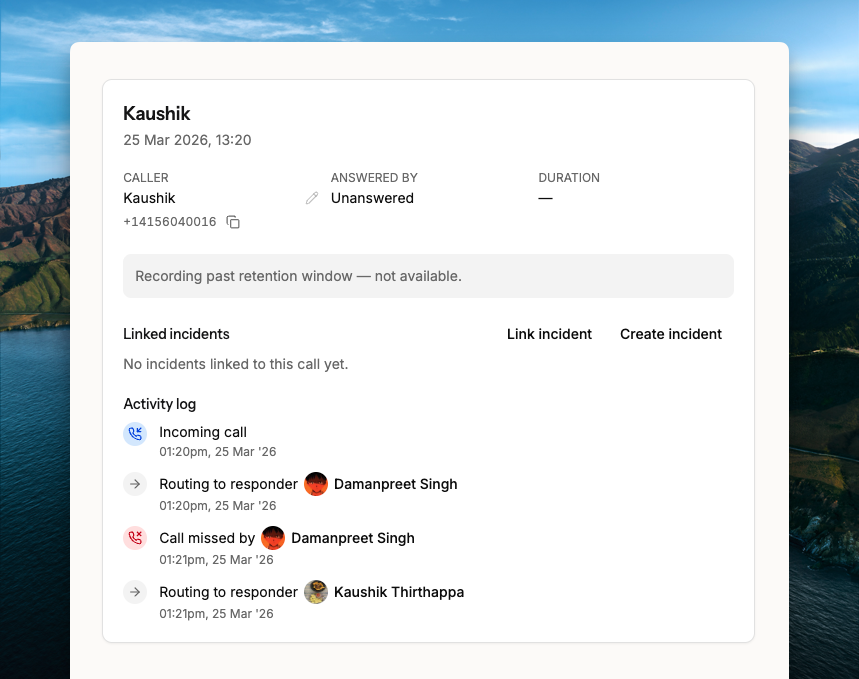
All calls appear in the Call Logs section of your dashboard.
All calls appear in the **Call Logs** section of your dashboard. Each log entry includes:
* Caller information
* Who answered (or if unanswered)
* Fallback activity (e.g., "Primary did not answer → routed to Secondary")
* Duration of the call
* A link to the audio recording
* Detailed activity log
* Link to incidents
From the log, you can:
* Review the call for post-incident analysis
* Create or link incidents directly from the log
* Archive or delete entries when no longer needed
### Test mode
Before going live, test your setup:
1. Enable **Test Mode** for 5 minutes.
2. During this time, all calls route directly to you.
3. Ask a colleague to call your number and confirm that routing, fallback, and messages work as expected.
### FAQs
#### How many fallback responders can I add?
Up to 2 fallback responders.
#### I don't have a Twilio or Plivo account. How can I get started?
Email . The Spike team can help with setup.
#### What happens if no one is on-call?
The caller hears your configured **No one on-call message**. Spike takes a message and creates a call log.
#### Can I review past calls?
Yes. All calls are logged with full details and a recording in the **Call Logs** section.
#### Can I have a transcript of my call?
Not yet. Transcripts aren't available currently.